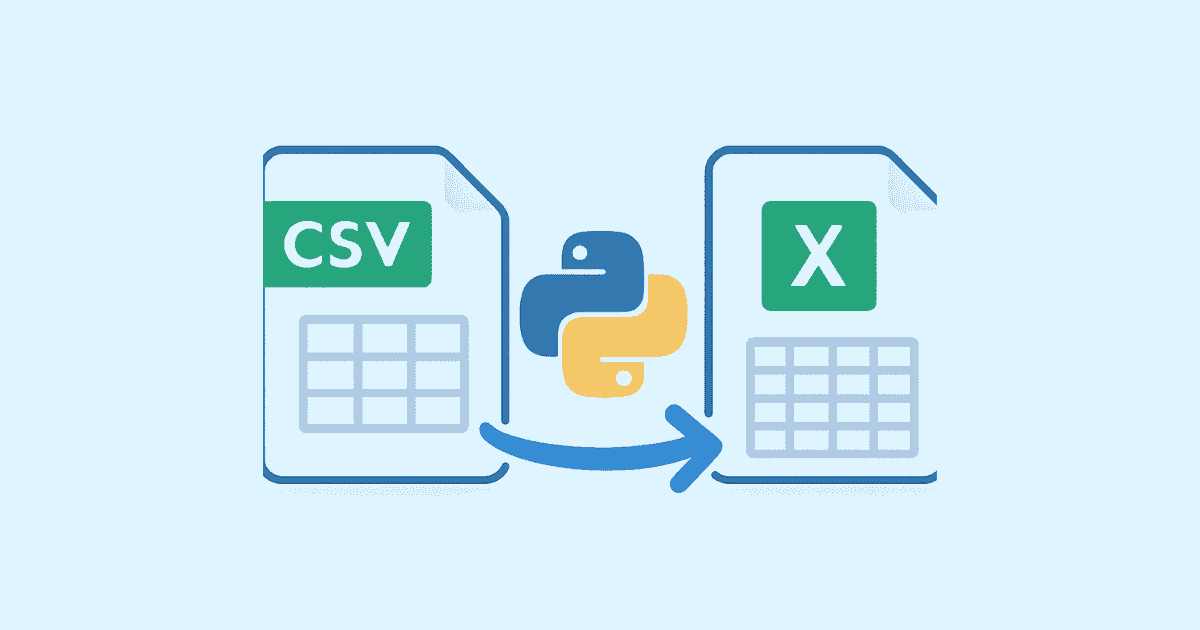
Converting CSV files to Excel workbooks is one of the most common data tasks in Python. It sounds simple at first, but in real projects it often becomes more useful than people expect. A CSV file is lightweight, easy to generate, and easy to share, but it has limits. It cannot store multiple sheets, formatted headers, frozen panes, column widths, formulas, colors, charts, or rich workbook structure. Excel, on the other hand, gives you a much better presentation layer and is often the format your team, clients, or managers actually want to open. That is why “convert CSV to Excel in Python” is such a practical skill: it bridges raw data and a more polished spreadsheet output without forcing you to do the work manually.
Python makes this task very easy, but the best method depends on what you need. Sometimes you just want a fast conversion from one CSV file into one XLSX file. Other times you want to convert many CSV files into a single Excel workbook with multiple sheets. In some cases, you want to preserve encoding, handle huge files, clean bad rows, add formatting, or create a professional report with a title, filters, frozen headers, and styled columns. The good news is that Python can handle all of these cases with the right library. The most popular choice is pandas, because it is simple, readable, and powerful. For deeper Excel formatting, openpyxl is often used together with pandas, or on its own when you need more control.
In this article, we will go step by step through different ways to convert CSV to Excel in Python. You will see beginner-friendly examples, more practical real-world examples, and code that you can adapt for your own projects. By the end, you will know how to convert a single CSV into Excel, how to write multiple CSV files into one workbook, how to add formatting, how to deal with missing values, and how to avoid common mistakes.
Why convert CSV to Excel?
CSV is a great format for storage and transfer, but it is not a presentation format. It is plain text, and every row is just a line of values separated by commas or another delimiter. That makes CSV ideal for APIs, exports, backups, logs, and data pipelines. However, when people open a CSV file in a business setting, they usually expect more than raw text. They may want separate sheets, automatic sizing, filters, styling, and a clean workbook they can use immediately. Excel gives that experience.
For example, imagine you export monthly sales data from a system. In CSV form, it is useful for machine processing, but in Excel you can create a workbook with separate sheets for each month, a summary sheet with totals, and a formatted table that is easy to review. Another example is a report sent to a client. A CSV file is technically correct, but it does not look professional. An Excel file with a title row, highlighted headers, and adjusted column widths feels much more polished. That is often enough to make the difference between a file that is “usable” and one that is actually pleasant to work with.
There is also a practical reason: Excel is widely used. Many users do not want to open CSV files in a text editor or import them manually. They just want to double-click a workbook. When you automate CSV-to-Excel conversion in Python, you save time, reduce human error, and create a repeatable workflow.
The simplest way: using pandas
The easiest method is to use pandas. If your goal is just to convert a CSV file into an Excel file, this is usually the best starting point. Pandas can read the CSV, store it in a DataFrame, and export it directly to .xlsx.
Here is the basic version:
import pandas as pd

# Read the CSV file
df = pd.read_csv("input.csv")

# Write to Excel
df.to_excel("output.xlsx", index=False)
That is enough for many use cases. The index=False part prevents pandas from writing the DataFrame index as an extra column in the Excel sheet. If you leave it out, Excel will include a numbered index column, which is often not what you want.
This short code works well when your CSV is clean and simple. But it is still important to understand what is happening. read_csv() loads the CSV into memory, and to_excel() writes it into a workbook. The result is an .xlsx file with one sheet by default, usually named Sheet1. If the CSV contains headers, pandas will use them as column names. If your CSV has special encoding, separators, or missing values, you may need to adjust the reading step.
Installing the required libraries
Before running the code, make sure pandas and an Excel writer engine are installed. For .xlsx files, openpyxl is the most common engine.
pip install pandas openpyxl
If you are using older workflows or need to work with .xls files, you may see xlrd or xlwt, but for modern Excel files .xlsx is the standard. In most cases, pandas plus openpyxl is the best combination.
Reading CSV files correctly
The most common mistake in CSV conversion is assuming all CSV files look the same. They do not. Some use commas, some use semicolons, some use tabs, and some use other delimiters. Some files are UTF-8 encoded, while others use Latin-1 or Windows encodings. Some CSVs contain blank lines, broken rows, or quoted values with commas inside them.
A more realistic example looks like this:
import pandas as pd

df = pd.read_csv(
    "input.csv",
    encoding="utf-8",
    sep=",",
    on_bad_lines="skip"
)

df.to_excel("output.xlsx", index=False)
Here, encoding="utf-8" tells pandas how to decode the file. sep="," defines the delimiter. on_bad_lines="skip" tells pandas to ignore rows that are malformed. This is useful when you are dealing with messy exported files.
If your CSV uses semicolons, the code changes slightly:
df = pd.read_csv("input.csv", sep=";")
If the file contains Arabic, French, or other non-English text, encoding becomes even more important. A file may look broken in Excel if it is opened with the wrong encoding. In those cases, test the source file carefully and set the right encoding when reading it.
Converting CSV to Excel with custom sheet names
Sometimes you want to control the sheet name instead of leaving it as the default. That is easy with pandas.
import pandas as pd

df = pd.read_csv("input.csv")

with pd.ExcelWriter("output.xlsx", engine="openpyxl") as writer:
    df.to_excel(writer, sheet_name="SalesData", index=False)
This creates an Excel workbook where the sheet is named SalesData. Naming sheets properly matters more than it seems. If the workbook is used by a team, a meaningful sheet name makes the file easier to understand. “Data,” “Report,” “Inventory,” or “Customers” is much more useful than the default sheet names.
Converting multiple CSV files into one Excel workbook
A very common real-world requirement is to take several CSV files and combine them into one Excel workbook, with each CSV becoming its own sheet. Python handles this beautifully.
import pandas as pd
from pathlib import Path

csv_folder = Path("csv_files")
output_file = "combined_workbook.xlsx"

with pd.ExcelWriter(output_file, engine="openpyxl") as writer:
    for csv_file in csv_folder.glob("*.csv"):
        df = pd.read_csv(csv_file)
        sheet_name = csv_file.stem[:31]  # Excel sheet names must be 31 chars or less
        df.to_excel(writer, sheet_name=sheet_name, index=False)
This script scans a folder, reads every .csv file, and writes each one to its own worksheet. The csv_file.stem gives the filename without extension, and [:31] is important because Excel sheet names have a maximum length of 31 characters.
This approach is especially useful for monthly reports, department exports, log archives, and any situation where separate CSV files belong together in one workbook. Instead of forcing users to open multiple files, you give them one consolidated Excel file.
Adding formatting to the Excel output
Basic conversion is useful, but formatting makes the result feel much better. For that, openpyxl is very helpful. You can use pandas to write the data, then use openpyxl to style the workbook.
Here is a practical example:
import pandas as pd
from openpyxl import load_workbook
from openpyxl.styles import Font, PatternFill, Alignment

# Read CSV and write to Excel
df = pd.read_csv("input.csv")
output_file = "formatted_output.xlsx"
df.to_excel(output_file, index=False, sheet_name="Data")

# Load workbook for formatting
wb = load_workbook(output_file)
ws = wb["Data"]

# Style header row
header_fill = PatternFill("solid", fgColor="1F4E78")
header_font = Font(color="FFFFFF", bold=True)

for cell in ws[1]:
    cell.fill = header_fill
    cell.font = header_font
    cell.alignment = Alignment(horizontal="center")

# Adjust column widths
for column_cells in ws.columns:
    length = max(len(str(cell.value)) if cell.value is not None else 0 for cell in column_cells)
    ws.column_dimensions[column_cells[0].column_letter].width = length + 2

wb.save(output_file)
This example does a few useful things. It colors the header row, makes the text bold and white, centers the header, and automatically adjusts column widths based on content length. This kind of formatting can transform a plain export into a workbook that looks much more professional.
Freezing the header row and enabling filters
When people work with Excel files, they often need to scroll through large data tables. Freezing the top row and enabling filters makes the workbook much easier to use.
import pandas as pd
from openpyxl import load_workbook

df = pd.read_csv("input.csv")
output_file = "filtered_output.xlsx"
df.to_excel(output_file, index=False, sheet_name="Data")

wb = load_workbook(output_file)
ws = wb["Data"]

# Freeze header row
ws.freeze_panes = "A2"

# Add filters to header row
ws.auto_filter.ref = ws.dimensions

wb.save(output_file)
freeze_panes = "A2" keeps the first row visible when the user scrolls down. auto_filter.ref = ws.dimensions enables Excel’s filter dropdowns for the full table. This is a very small change, but it makes a big difference in usability.
Handling missing values and cleanup before conversion
CSV files often contain missing values, empty strings, duplicated rows, and inconsistent formatting. A good conversion script should not just copy the data blindly. It should clean the data first, especially if the file will be used for reporting.
Here is an example of basic cleanup before exporting to Excel:
import pandas as pd

df = pd.read_csv("input.csv")

# Replace missing values with a readable placeholder
df = df.fillna("N/A")

# Remove duplicate rows
df = df.drop_duplicates()

# Strip whitespace from column names
df.columns = df.columns.str.strip()

df.to_excel("clean_output.xlsx", index=False)
This version fills missing values with N/A, removes duplicates, and trims extra spaces from column names. Depending on your dataset, you might also want to convert dates, normalize number formats, or standardize text. Cleaning the data before writing Excel helps avoid confusion later.
Working with large CSV files
Large files require a bit more care. If the CSV is huge, loading everything into memory may slow your script or cause memory issues. One solution is to read the file in chunks.
import pandas as pd

chunks = pd.read_csv("large_input.csv", chunksize=100000)

with pd.ExcelWriter("large_output.xlsx", engine="openpyxl") as writer:
    start_row = 0
    for chunk in chunks:
        chunk.to_excel(
            writer,
            sheet_name="Data",
            index=False,
            header=(start_row == 0),
            startrow=start_row
        )
        start_row += len(chunk) + (1 if start_row == 0 else 0)
This is a more advanced approach, and it is useful when you are working with big exports. However, it is important to note that Excel itself has limitations. A worksheet can only hold a certain number of rows and columns. If your CSV is extremely large, you may need to split it across multiple sheets or multiple workbooks.
For most everyday projects, though, a standard pandas conversion is enough. The important part is to be aware of file size and not assume that every dataset is small.
Converting CSV to Excel without pandas
Although pandas is the most convenient option, you can also use openpyxl directly if you want finer control or if you do not need the full power of DataFrames. This approach is more manual, but it can be useful in lightweight scripts.
import csv
from openpyxl import Workbook

input_file = "input.csv"
output_file = "output.xlsx"

wb = Workbook()
ws = wb.active
ws.title = "Data"

with open(input_file, "r", encoding="utf-8", newline="") as file:
    reader = csv.reader(file)
    for row in reader:
        ws.append(row)

wb.save(output_file)
This code reads the CSV with Python’s built-in csv module and writes each row into Excel using openpyxl. It is simple and avoids pandas altogether. This method is helpful when you want full control over individual cells or when you are building a small utility script.
That said, once you need analysis, filtering, grouping, or data cleanup, pandas becomes much more convenient. For most users, pandas is the better choice.
Writing multiple sheets with different data
Sometimes the conversion task is not just “CSV to Excel” but “CSV to a workbook with several related sheets.” For example, you may want one sheet for raw data, one for cleaned data, and one for summary statistics. You can do this easily with pandas.
import pandas as pd

df = pd.read_csv("input.csv")

cleaned = df.drop_duplicates().fillna("")
summary = df.describe(include="all")

with pd.ExcelWriter("report.xlsx", engine="openpyxl") as writer:
    df.to_excel(writer, sheet_name="RawData", index=False)
    cleaned.to_excel(writer, sheet_name="CleanedData", index=False)
    summary.to_excel(writer, sheet_name="Summary")
This kind of workbook is much more useful than a plain export. It gives the reader multiple views of the same data. A raw sheet preserves the original content, a cleaned sheet gives a better working version, and a summary sheet helps stakeholders understand the dataset quickly.
Applying number formats and date formats
Excel has strong formatting capabilities, and Python can help you preserve or improve them. Sometimes a CSV column contains numbers that should be displayed as currency, percentages, or dates. If you write them to Excel without handling formats, they may appear as plain text.
Here is an example of formatting columns in Excel after export:
import pandas as pd
from openpyxl import load_workbook

df = pd.read_csv("input.csv")
output_file = "formatted_numbers.xlsx"
df.to_excel(output_file, index=False, sheet_name="Data")

wb = load_workbook(output_file)
ws = wb["Data"]

# Example: format column B as currency and column C as date
for cell in ws["B"][1:]:
    cell.number_format = '$#,##0.00'

for cell in ws["C"][1:]:
    cell.number_format = 'yyyy-mm-dd'

wb.save(output_file)
Of course, the actual column letters depend on your dataset. The important idea is that Excel formatting can make your file more readable and more professional. If you have financial data, date data, or percentages, applying the right formats improves the final result significantly.
Creating a reusable conversion function
In real projects, it is better to wrap the conversion logic in a reusable function. That makes your code cleaner and easier to maintain.
import pandas as pd
from openpyxl import load_workbook
from openpyxl.styles import Font

def convert_csv_to_excel(csv_path, excel_path, sheet_name="Data"):
    df = pd.read_csv(csv_path)

    with pd.ExcelWriter(excel_path, engine="openpyxl") as writer:
        df.to_excel(writer, sheet_name=sheet_name, index=False)

    wb = load_workbook(excel_path)
    ws = wb[sheet_name]

    # Bold header row
    for cell in ws[1]:
        cell.font = Font(bold=True)

    # Auto width
    for column_cells in ws.columns:
        max_length = 0
        column_letter = column_cells[0].column_letter
        for cell in column_cells:
            value = "" if cell.value is None else str(cell.value)
            if len(value) > max_length:
                max_length = len(value)
        ws.column_dimensions[column_letter].width = max_length + 2

    wb.save(excel_path)

# Example usage
convert_csv_to_excel("input.csv", "output.xlsx")
A function like this is ideal when you need to convert many files or automate a scheduled task. You can extend it with error handling, logging, custom encodings, and extra styling.
Adding error handling
Production code should not fail silently. CSV files can be missing, corrupted, empty, or unreadable. Excel writing can also fail if the output file is already open or if the sheet name is invalid. Adding error handling makes your script much safer.
import pandas as pd

def safe_convert_csv_to_excel(csv_path, excel_path):
    try:
        df = pd.read_csv(csv_path)
        if df.empty:
            print("The CSV file is empty.")
            return

        df.to_excel(excel_path, index=False)
        print(f"Converted {csv_path} to {excel_path}")

    except FileNotFoundError:
        print(f"File not found: {csv_path}")
    except pd.errors.EmptyDataError:
        print("The CSV file has no data.")
    except Exception as e:
        print(f"Unexpected error: {e}")

safe_convert_csv_to_excel("input.csv", "output.xlsx")
This example is simple, but it shows the pattern you should follow. A conversion script should be predictable and helpful when something goes wrong. The worst kind of script is one that fails without explaining why.
Choosing between pandas and openpyxl
A lot of beginners wonder whether they should use pandas or openpyxl. The answer depends on the task.
Use pandas when you need to read CSV data, clean it, transform it, summarize it, or convert it quickly. It is the best choice for most data workflows. It is also much easier to write and read. Use openpyxl when you need detailed workbook manipulation, such as setting styles, merging cells, creating formulas, freezing panes, adjusting sheet properties, or working with cells one by one.
In many cases, the best solution is to combine them. Pandas handles the data, and openpyxl handles the presentation. That combination gives you speed and control at the same time.
Example: full practical script
Here is a more complete script that reads a CSV, cleans it, writes it to Excel, adds formatting, and adjusts usability features.
import pandas as pd
from openpyxl import load_workbook
from openpyxl.styles import Font, PatternFill, Alignment

def csv_to_excel(csv_file, excel_file, sheet_name="Report"):
    # Read the CSV
    df = pd.read_csv(csv_file)

    # Basic cleanup
    df.columns = df.columns.str.strip()
    df = df.drop_duplicates()
    df = df.fillna("")

    # Write to Excel
    with pd.ExcelWriter(excel_file, engine="openpyxl") as writer:
        df.to_excel(writer, sheet_name=sheet_name, index=False)

    # Load workbook for styling
    wb = load_workbook(excel_file)
    ws = wb[sheet_name]

    # Freeze top row
    ws.freeze_panes = "A2"

    # Add filters
    ws.auto_filter.ref = ws.dimensions

    # Header style
    header_fill = PatternFill("solid", fgColor="4F81BD")
    header_font = Font(color="FFFFFF", bold=True)

    for cell in ws[1]:
        cell.fill = header_fill
        cell.font = header_font
        cell.alignment = Alignment(horizontal="center")

    # Auto-size columns
    for column_cells in ws.columns:
        max_length = 0
        column_letter = column_cells[0].column_letter
        for cell in column_cells:
            value = "" if cell.value is None else str(cell.value)
            if len(value) > max_length:
                max_length = len(value)
        ws.column_dimensions[column_letter].width = min(max_length + 2, 50)

    wb.save(excel_file)

csv_to_excel("input.csv", "final_report.xlsx")
This script is a great starting point for real projects. It does a little bit of everything: cleanup, conversion, styling, filters, and usability improvements. You can easily adapt it for your own needs by changing the file names, sheet name, or formatting colors.
Common problems and how to solve them
One common issue is Excel sheet name length. Excel does not allow sheet names longer than 31 characters. If your CSV filename is long, trim it before using it as a sheet name. Another issue is encoding. If special characters appear broken, try reading the CSV with a different encoding such as utf-8, latin-1, or cp1252.
Another frequent problem is separator mismatch. Some CSV files use semicolons instead of commas. If your output looks like all the data is in one column, that usually means the delimiter is wrong. Also, beware of formulas and leading zeros. For example, a CSV value like 00123 may be interpreted as a number and lose the leading zeros when opened in Excel unless you handle it carefully. Similarly, Excel may auto-format dates or large numbers in unexpected ways.
Finally, remember that CSV files do not contain formatting. If your source file looks ugly, that is not a bug in Python. It is simply the nature of CSV. The formatting must be added during or after conversion.
Best practices for clean CSV to Excel conversion
A good conversion script should be predictable, readable, and reusable. Keep the file reading step separate from the formatting step so you can debug easier. Use functions instead of writing everything in one block of code. Validate the input file before converting it. Preserve the original data as much as possible, but clean obvious issues like duplicate rows and messy column names. Make the workbook easier to use by freezing the header, enabling filters, and adjusting column widths.
It also helps to test your script on a small sample before running it on a large dataset. That way, you can confirm that encodings, separators, and formatting all behave as expected. When the output is correct on a small file, you can usually scale it to larger files with confidence.
Final thoughts
Converting CSV to Excel in Python is one of those tasks that starts small but quickly becomes valuable in everyday work. With a few lines of code, you can turn raw data into a readable workbook. With a little more effort, you can create polished reports that are easier for people to use, share, and understand. Pandas makes the conversion process simple, while openpyxl gives you the ability to style and refine the output.
The best part is that you do not need a complicated setup. A basic conversion can be done in just a few lines, and then you can grow the script as your needs grow. Whether you are building internal tools, preparing business reports, cleaning data exports, or automating file workflows, this skill will save time again and again.
Hassan Agmir
Author · Filenewer
Writing about file tools and automation at Filenewer.
Try It Free
Process your files right now
No account needed · Fast & secure · 100% free
Browse All Tools